VMware Workstation:Windows上虚拟机性能缓慢

VMware Workstation:Windows 上虚拟机性能缓慢

在运行 Windows 11/10 的台式计算机上安装 VMware Workstation 后,您可能会遇到虚拟机中 Windows 客户机操作系统性能极其缓慢且运行不稳定的情况。有趣的是,使用 Windows 10 或 11 客户机的虚拟机通常表现良好,而运行 Windows Server 2019 或 2022 的虚拟机在操作过程中往往明显更慢。在虚拟机中简单安装 Windows Server 客户机可能需要数小时才能完成。
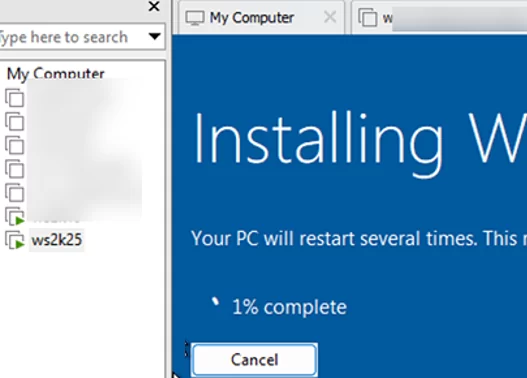
slow windows server performance on vmware workstation

Windows 客户机在 VMware Workstation 中性能不佳可能由多种因素导致。

首先,检查存储在虚拟机目录中的 vmware.log 文件,以分析 VMware 环境中虚拟机的缓慢性能。
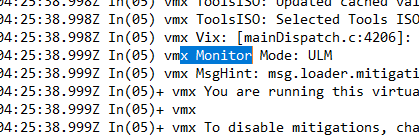
vmware.log - vmx Monitor Mode: ULM

请注意 VM 日志中的以下信息:

1
2
3
4
5
6
7
8
9
10
2025-02-14T12:03:45.874Z In(05) vmx MsgHint: msg.loader.mitigations.wsAndFusion
2025-02-14T12:03:45.874Z In(05))+ vmx You are running this virtual machine with side channel mitigations enabled. Side channel mitigations provide enhanced security but also lower performance.
2025-02-14T12:03:45.877Z In(05)+ vmx
2025-02-14T12:03:45.877Z In(05) vmx To disable mitigations, change the side channel mitigations setting in the advanced panel of the virtual machine settings. Refer to VMware KB article 79832 at https://kb.vmware.com/s/article/79832 for more details.

翻译:
2025-02-14T12:03:45.874Z In(05) vmx MsgHint: msg.loader.mitigations.wsAndFusion
2025-02-14T12:03:45.874Z In(05))+ vmx 您正在启用侧信道缓解措施(side channel mitigations)的情况下运行此虚拟机。侧信道缓解措施可提供增强的安全性,但也会降低性能。
2025-02-14T12:03:45.877Z In(05)+ vmx
2025-02-14T12:03:45.877Z In(05) vmx 要禁用缓解措施,请在虚拟机设置的“高级”面板中更改侧信道缓解措施设置。有关更多详细信息,请参阅位于 https://kb.vmware.com/s/article/79832 的 VMware KB 文章 79832。

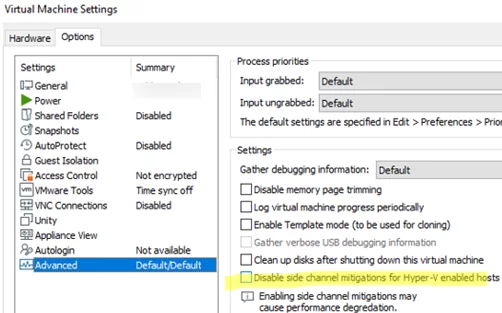
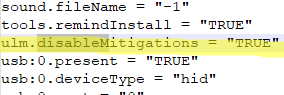
这表明虚拟机已启用侧信道攻击防护(此类典型漏洞为 Spectre 和 Meltdown),该防护会限制第三方进程(包括虚拟机)访问受保护的内核(主机)内存。在启用了基于虚拟化的安全(VBS)的 Windows 主机上,所有虚拟机默认启用侧信道缓解。此保护可在 VMware Workstation 中禁用(虚拟机属性 -> 选项 -> 高级 -> 启用“为启用了 Hyper-V 的主机禁用侧信道缓解”选项),或在虚拟机的 VMX 配置文件中添加以下参数来禁用:

1
ulm.disableMitigations="TRUE"

Disable side channel mitigations for Hyper-V enabled hosts

ulm.disableMitigations in VMware VM

如果这不能解决虚拟机性能不佳的问题,请在 vmware.log 中查找另一行:

1
2025-02-14T12:03:45.877Z In(05) vmx Monitor Mode: ULM

这表明 VMware Workstation 正在以用户级别模式 (ULM) 运行。ULM 模式会导致虚拟机监控程序上的虚拟机以用户模式而非内核模式运行。在 VMware Workstation 上以这种模式运行虚拟机时,客户机操作系统的性能将严重下降,导致几乎任何操作都会出现显著变慢。如果 Windows 主机安装了 Hyper-V 虚拟机监控程序功能,VMware Workstation 将自动以 ULM 模式运行虚拟机。

在这种情况下,解决问题的唯一方法是禁用主机操作系统中的 Hyper-V 虚拟化功能。这允许虚拟机监控程序 (VMM) 组件直接访问物理 CPU 的虚拟化指令集,绕过额外的 Windows Hypervisor Platform API 层。

在cmd中验证主机是否允许运行 Hyper-V 功能:

1
BCDEdit /enum| select-string "hypervisorlaunchtype"

输出中的 hypervisorlaunchtype Auto 表示 Windows 启动加载程序可以运行 Hyper-V 虚拟化平台组件。

禁用 Hyper-V 虚拟机监控程序在启动时启动:

1
bcdedit /set hypervisorlaunchtype off

bcdedit disable hypervisorlaunchtype

重新启动计算机,并检查VMware中Windows Server虚拟机的性能是否有所改善。


请注意,这将禁用主机上依赖于虚拟机平台组件的多项附加功能,包括:

  • Hyper-V 虚拟机
  • WSL2(Windows Subsystem for Linux 2)
  • Windows 沙盒
  • 凭证防护和设备防护
1
2
3
4
当前计算机配置不支持 WSL2。
请启用“虚拟机平台”可选组件,并确保在 BIOS 中已启用虚拟化。
通过运行以下命令启用“虚拟机平台”:wsl.exe --install --no-distribution
错误代码:Wsl/Service/CreateInstance/CreateVm/HCS/HCS_E_HYPERV_NOT_INSTALLED

WSL2 is not supported with your current machine configuration. Please enable the "Virtual Machine Platform" optional component and ensure virtualization is enabled in the BIOS.

要启用 Hyper-V 组件,请使用以下命令:

1
bcdedit /set hypervisorlaunchtype auto

原文链接:https://woshub.com/slow-vm-performance-vmware-workstation/

翻译/校对:吕了了


VMware Workstation:Windows上虚拟机性能缓慢
https://lvlele.top/235winoshub_04/
作者
吕了了
发布于
2026年11月5日
许可协议